
How many Copilot buttons does one inbox need? If you’ve opened the new Outlook lately, the answer has been “far too many.” The Copilot Outlook update arriving this October admits it: Microsoft is redesigning Copilot in Outlook around a single, simplified, chat-centered experience.
It is a rare moment of restraint from a company that spent two years stuffing AI into every corner of its apps. For professionals drowning in email, this is genuinely good news.
What the October update actually changes
Microsoft’s plan is in admin message MC1458470, updated September 29, 2026, with general availability set for October 2026 — slipped from September.
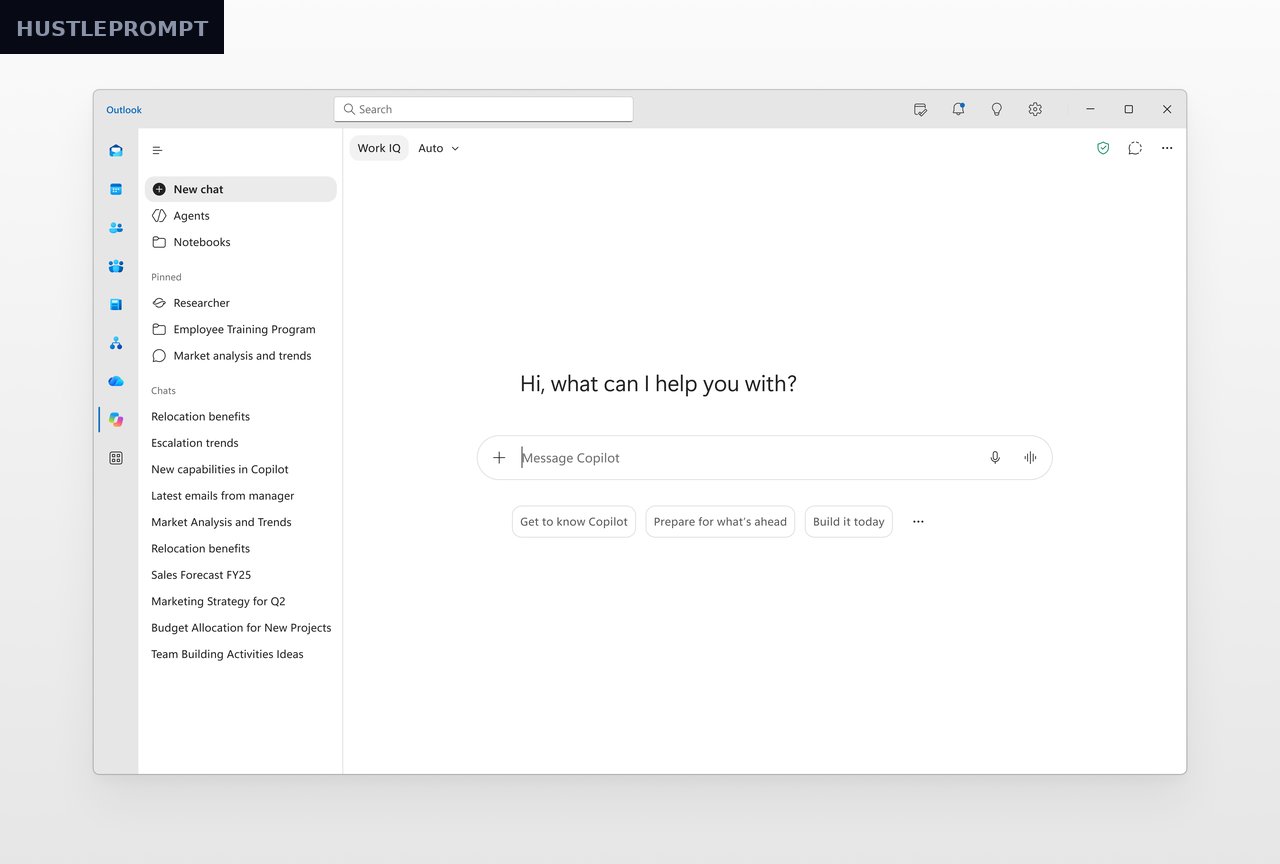
The idea: replace scattered Copilot entry points with one chat-centered design — simplified navigation, updated chat layout, better agent discovery, and new Work IQ controls for managing how your work data and web content ground Copilot’s answers.
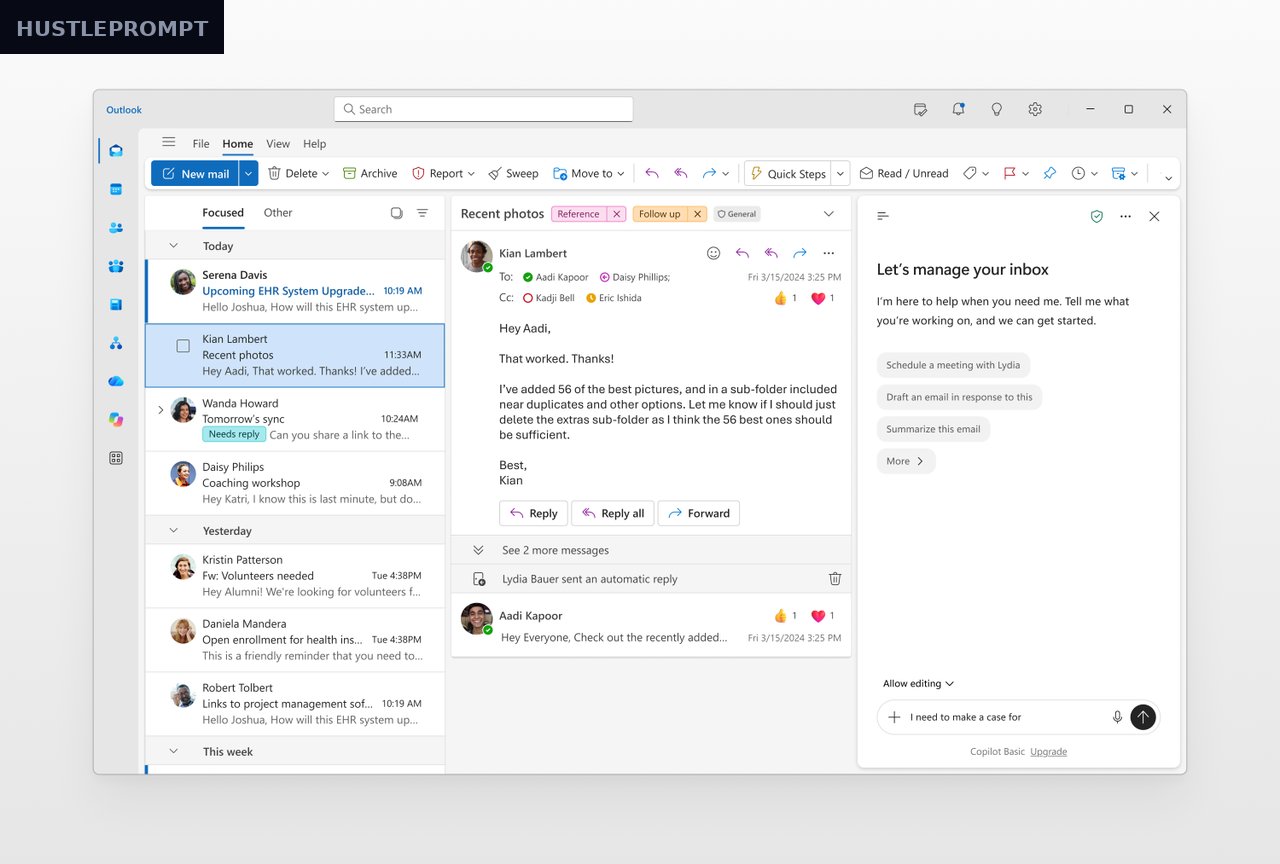
It lands in two places: the full-page Copilot experience and the Copilot side pane. Full-screen users also get a new Tasks view showing long-running Copilot activities like agent activity and scheduled chats; the side pane gets the refresh without the Tasks view.
The change is enabled by default, needs no admin or user action, and brings no changes to licensing, permissions, or compliance controls. The ribbon button stays — and can now be turned off. Copilot’s genuinely useful features, rewriting drafts and correcting messages, survive the cleanup.
Before vs. after: the great decluttering
What Copilot in new Outlook had become: a floating button (recently rolled back after user outrage), a ribbon button, Copilot inside compose, Outlook Search integration, and a full chat experience on the left. Five entry points, no clear mental model.
The October redesign collapses that into two: a full-page chat experience and a contextual side pane. The floating intrusions and scattered triggers get trimmed.
| Element | Before | After (October 2026) |
|---|---|---|
| Entry points | Floating button, ribbon, compose, search, left-side chat | Full-page chat + contextual side pane |
| Ribbon access | Always visible | Stays, but can be turned off |
| Tasks visibility | None | New Tasks view in full-screen |
| Grounding controls | Unclear | Dedicated Work IQ controls |
| Themes by Copilot | Available in Settings | Retired mid-to-late October 2026 |
| Rewrite / correct | Available in compose | Unchanged |
Copilot in Outlook: before vs. after
✗ Before: five scattered triggers
- Floating button (rolled back after backlash)
- Ribbon button opening the right sidebar
- Copilot inside compose and Outlook Search
- Full chat experience on the left
✓ After: one chat-centered design
- Full-page chat mirroring the Copilot app
- Contextual side pane with refreshed layout
- New Tasks view for background activities
- Work IQ controls; optional ribbon access
What’s getting cut along the way
The redesign is not the only subtraction. Microsoft is retiring Themes by Copilot — AI-generated Outlook themes — worldwide from mid-to-late October 2026, per admin message MC1492954. Existing themes stay until you switch away, but you can’t create or restore them. Microsoft hasn’t explained why.
The “Wrap up your day” nudge is also going: its popup kept returning no matter how often users dismissed it. The signal is clear: Microsoft is done with AI for AI’s sake in Outlook. Ignored or annoying features get cut while the chat core improves.
How to profit: make Outlook’s AI earn its keep
Simpler doesn’t mean less useful. Turn the new chat-centered Copilot into a daily time-saver:
- Start the day in the side pane. Ask for a briefing on today’s priority threads — action-required emails first.
- Let Copilot draft; you decide. Use rewrite and correction on every outbound email. Draft sloppy, correct fast.
- Summarize threads before meetings. Ask: key decisions, open questions, who owes what. Five minutes of reading becomes thirty seconds.
- Watch the Tasks view. Check background agent activity and scheduled chats before asking “did it finish?”
- Kill what you don’t use. Never touch Copilot? Turn off the ribbon access. A cleaner inbox is a faster inbox.
Verified facts, straight from Microsoft:
- GA October 2026 (was September); timeline updated September 29, 2026. (MC1458470)
- Simplified navigation, updated chat layout, improved agent discovery, Work IQ controls — in full-page and side pane. (MC1458470)
- No changes to licensing, permissions, or compliance controls; enabled by default. (MC1458470)
- “Themes by Copilot in Microsoft Outlook will be retired worldwide from mid- to late October 2026.” (Microsoft, via Windows Latest)
The honest take
This update is Microsoft admitting the experiment failed. Copilot in Outlook was overexposed — buttons everywhere, features nobody asked for. Users rejected the clutter, and Microsoft listened. An AI assistant earns its place by saving time, not occupying screen space.
Frequently Asked Questions
When does the new Copilot design roll out?
General availability in October 2026, per MC1458470 — moved back from September.
Do I need to do anything as an admin?
No. It’s enabled by default; Microsoft only asks admins to inform users and update docs.
Will Copilot in the ribbon disappear?
No — the ribbon button stays and can now be turned off.
What is Work IQ?
Controls for how your work data and web content ground Copilot’s answers.
What happened to Themes by Copilot?
Retired mid-to-late October 2026 (MC1492954). Existing themes stay until you switch; no new ones.
Does this change my Copilot license?
No — no changes to licensing, permissions, or compliance controls.
Sources
- Admin message MC1458470: “Simplified Copilot experience in Microsoft Outlook” — official Microsoft 365 message (cited via public Message Center archive; live version requires tenant login).
- Windows Latest: Copilot themes killed in Outlook — secondary (verified live, Oct 13, 2026).
- Windows Report: Outlook Copilot themes retirement — secondary, on MC1492954.