
Your AI assistant now reads your email — officially. The latest Copilot Memory update means copilot memory work insights are drawn from your emails, Teams chats and meeting transcripts. Rolling out through October 2026, it quietly changes what “AI remembers about you” means.
This is Microsoft 365 roadmap item 551195, rolling out now. Here is what it learns, the three controls Microsoft gives you, and how to sell this knowledge to small-business clients.
What changed (and when)
Copilot Memory is getting a new ingredient: work insights — details Copilot learns from your emails, Teams chats and meeting transcripts, used as extra context when responding.
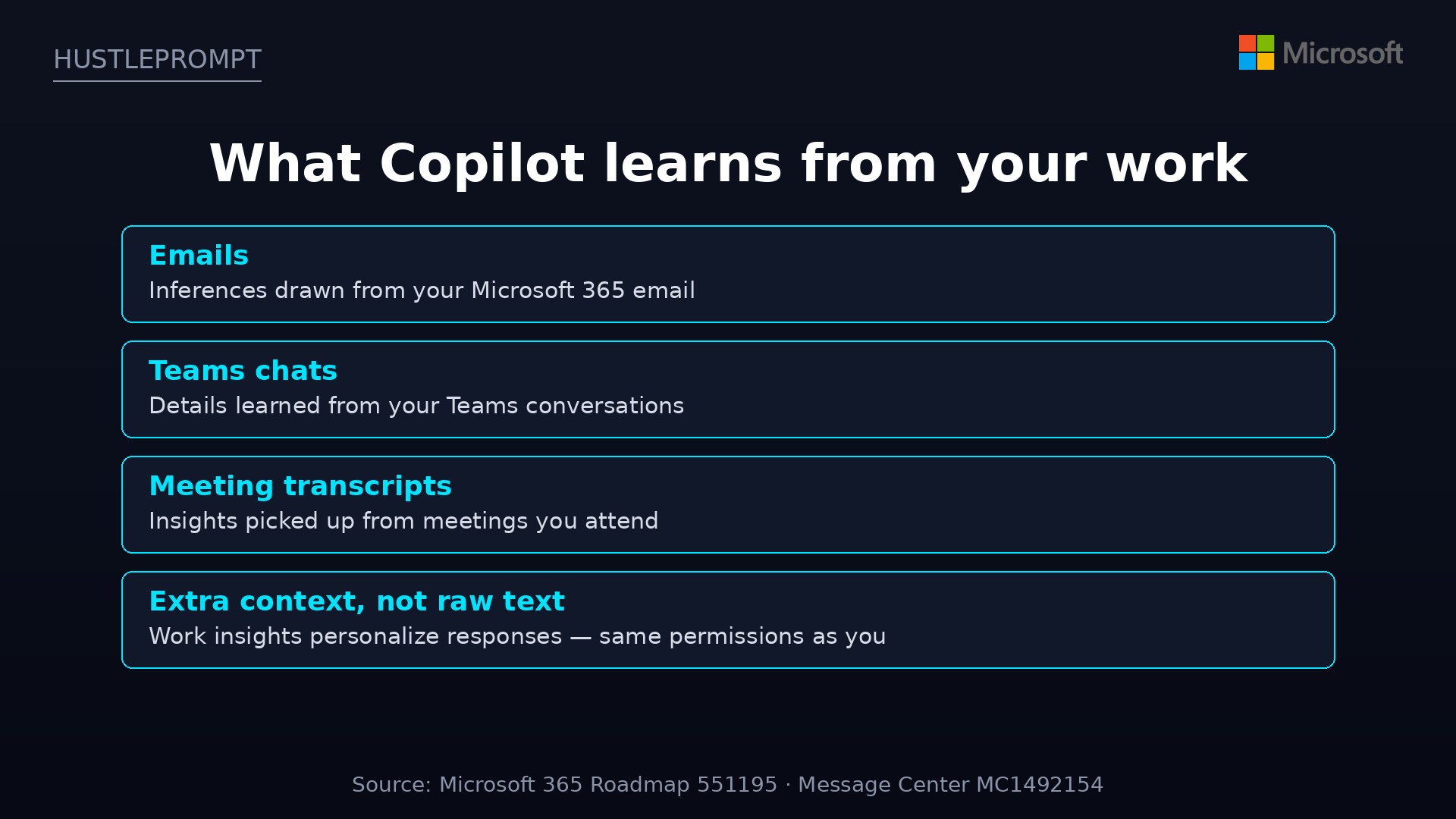
The goal: responses more relevant to your actual work. Copilot already remembered what you told it; now it also infers context from the work you produce daily.
All figures from Microsoft 365 Roadmap item 551195 and Message Center MC1492154.
How it works
Copilot Memory is a profile Copilot builds about you — work insights are its newest input:
What feeds the memory now
Work insights join Copilot Memory’s existing inputs:
Your three privacy controls
Microsoft’s message: you stay in control. Exactly what to do:
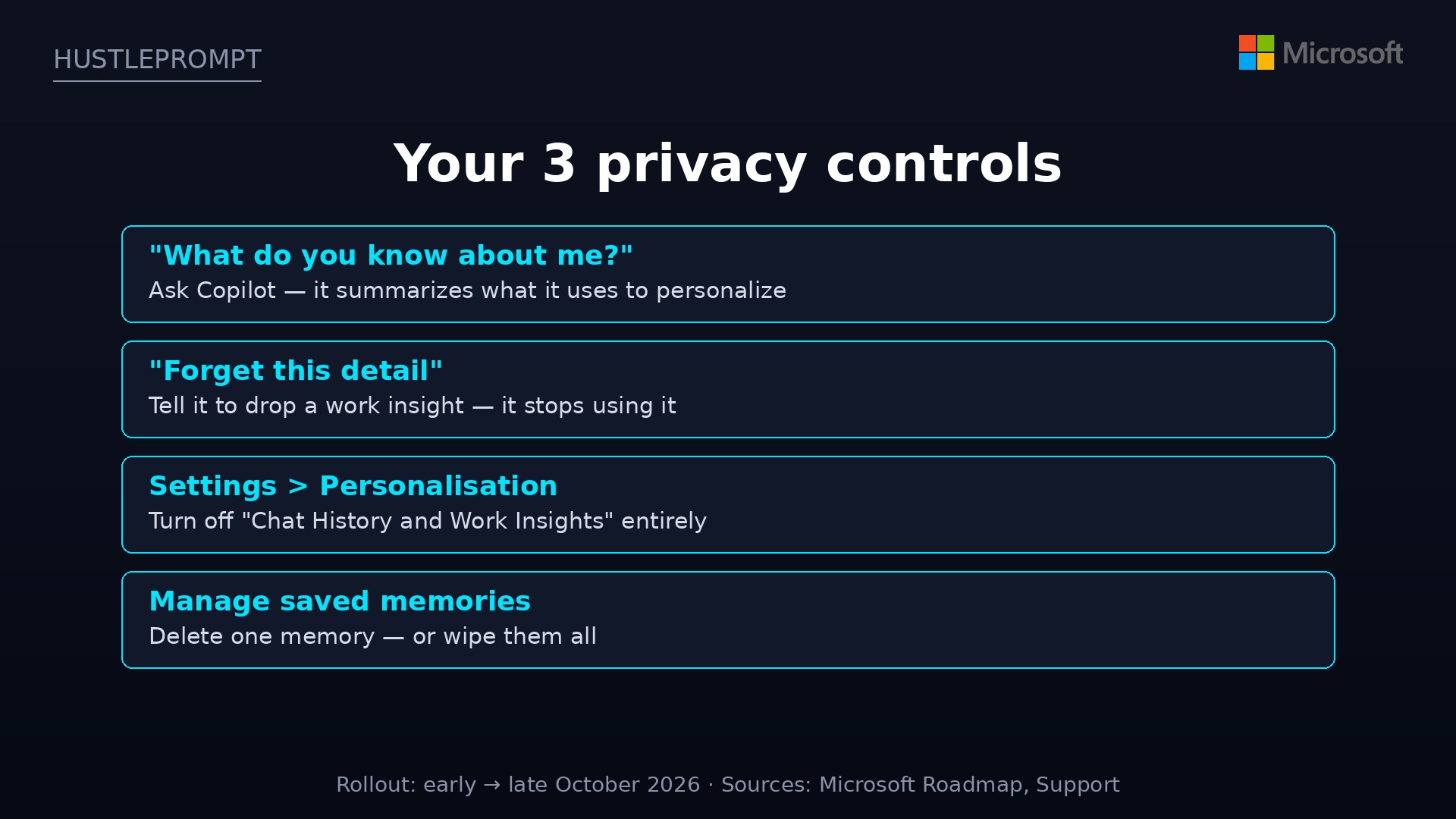
1. Audit: “What do you know about me?”
Ask Copilot: “What do you know about me?” It summarizes what it uses to personalize responses — including work insights. Run this monthly; it takes 30 seconds.
2. Forget: drop a single detail
See a work insight you do not want used? Tell Copilot to forget it — it stops using that detail for personalization.
3. Off: the master toggle
Go to Settings > Personalisation and turn off “Chat History and Work Insights.” One toggle kills the pipeline. Note: turning memory off does not auto-delete saved memories — use “Delete all memories” for a clean slate.
Tip: for one-off questions, temporary chats do not access or store personalized information, per Microsoft’s support docs.
What admins need to know
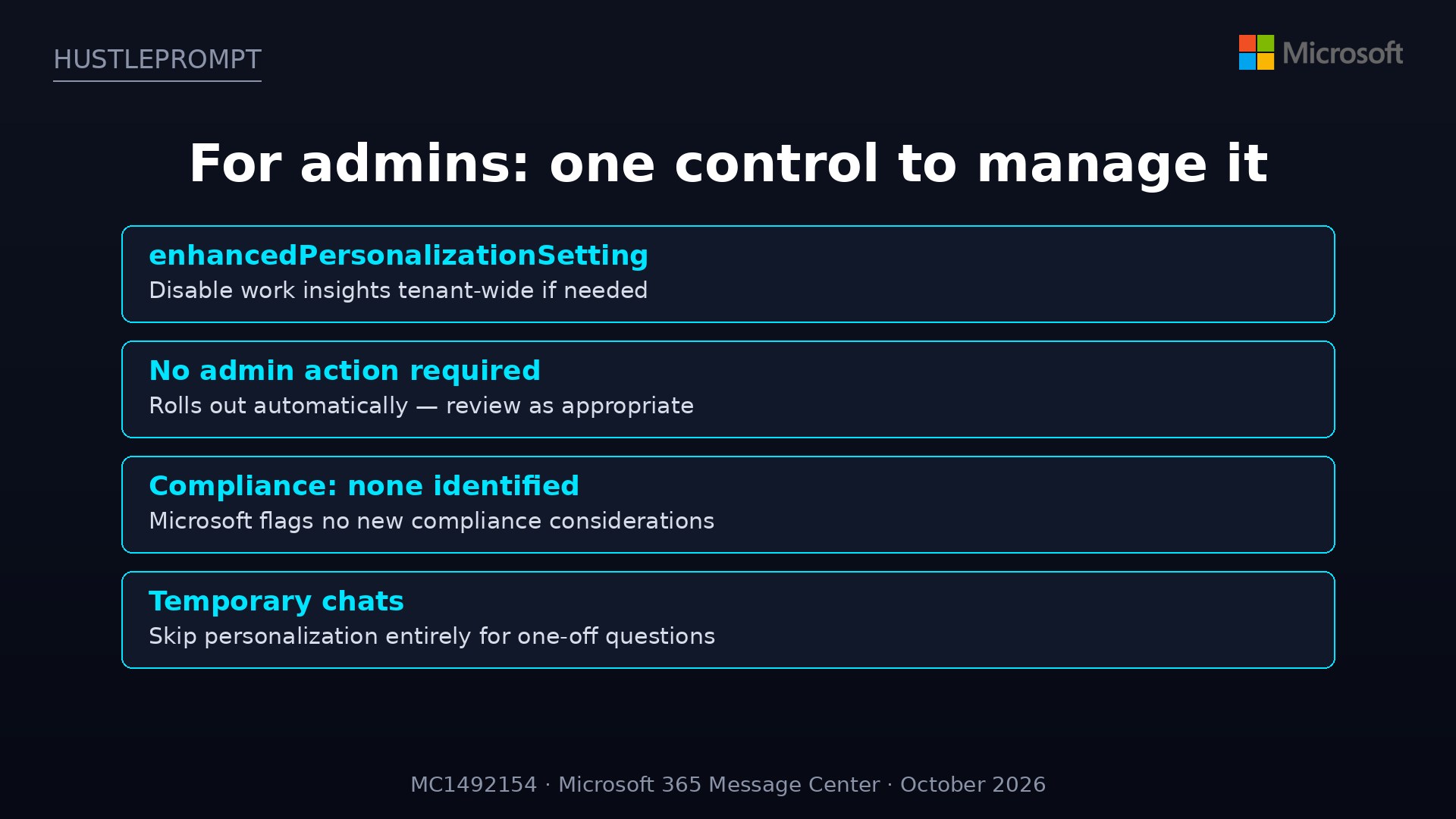
For IT admins, Microsoft keeps this simple:
- One control: the enhancedPersonalizationSetting admin control disables work insights tenant-wide if your policy requires it.
- No action required: the rollout is automatic — “no additional work is required from the admin.”
- Compliance: Microsoft identifies no new compliance considerations, but advises reviewing as appropriate for your organization.
- Timing: rollout began early October 2026 and completes by late October 2026.
How to profit: sell the “AI memory briefing”
Every Microsoft 365 business now has an AI building staff profiles from company email. Most owners have no idea — that gap is a service business:
- Package a “Copilot Memory Audit” ($500–$1,500). Deliverable: what Copilot knows per role, which work insights are wrong, and a recommended settings baseline.
- Run the audit live. Ask Copilot “What do you know about me?” on the client’s machine, review saved memories together, and clean up stale inferences on the spot.
- Set the privacy baseline: configure the toggle per role, write 3–5 custom instructions (tone, format, confidentiality), and document it in a one-page policy.
- Sell the compliance checklist as a product. Turn your audit into a repeatable checklist — settings review, audit cadence, admin control review, retention alignment, employee comms template. Sell it as a $199 download.
- Upsell quarterly “memory hygiene” retainers — $150/quarter for a 20-minute check-in keeps the profile clean.
The pitch writes itself: “Your AI assistant is learning from your company email. Do you know what it remembers?”
FAQ
What are Copilot “work insights”?
Details Copilot learns from your emails, Teams chats and meeting transcripts, used to personalize responses. Rolling out early → late October 2026 (roadmap ID 551195).
How do I see what Copilot remembers about me?
Ask Copilot “What do you know about me?” — it summarizes the saved info and work insights it uses.
Can I make Copilot forget something?
Yes. Tell Copilot to forget a specific detail and it will stop using it for personalization. For a full wipe, use “Delete all memories” in the Saved memories settings — turning memory off alone does not delete existing memories.
How do I turn off work insights completely?
In Settings > Personalisation, turn off “Chat History and Work Insights.” Admins can disable it tenant-wide via enhancedPersonalizationSetting.
Does this apply to personal Microsoft accounts too?
This is a Microsoft 365 (work/school account) feature, tied to your organization’s Copilot plan. Consumer Copilot has separate controls under Settings > Personalisation.
Do temporary chats bypass all of this?
Yes — temporary chats do not access or store personalized information, per Microsoft’s support docs.
Sources
- Microsoft 365 Roadmap — item 551195: Copilot Memory uses work insights
- Message Center MC1492154 — Enhanced M365 Copilot Memory rollout details
- Microsoft Support — Manage Copilot Memory in Microsoft 365 Copilot
- Microsoft Support — Copilot privacy controls and choices