
What if one recording could fill your entire content calendar for a month? That’s exactly what AI content repurposing does: you record a single long video, and AI tools slice it into clips, add captions, reframe it for every platform, and hand you 30+ ready-to-post assets. No editor. No extra filming days.
Short-form video dominates every major platform, yet most creators publish once or twice a week because editing eats their time. This tutorial fixes that: record once, let AI do the cutting, then schedule a month of posts in an afternoon.
Below: the exact 7-step workflow, the three leading tools with verified pricing, and a service example showing how freelancers sell repurposing as a $500–$1,500/month retainer (our estimate — details below).
Why AI Content Repurposing Wins in 2026
Manual editing is the bottleneck that kills most content strategies. A creator who records a 60-minute podcast could spend 8–10 hours turning it into short clips by hand — or about 20 minutes with an AI clipping tool. The math isn’t close.
The reason it works is leverage: your best ideas are already in your long-form content. Repurposing redistributes finished work onto platforms where new audiences live.
The numbers behind the system
The 3 Best AI Repurposing Tools, Compared
Three tools dominate this space in 2026: Opus Clip, Vizard, and Captions. They all turn long videos into short clips with captions, but they bill differently and suit different users. Prices below were verified on the official pricing pages on October 16, 2026 — check the live pages before buying, since plans change.
Sources: opus.pro/pricing, vizard.ai/pricing, Captions pricing (checked against the public pricing page). Vizard dollar prices are from October 2026 plan summaries citing vizard.ai — the official page renders prices via JavaScript, so confirm at checkout.
Opus Clip: the most automated path
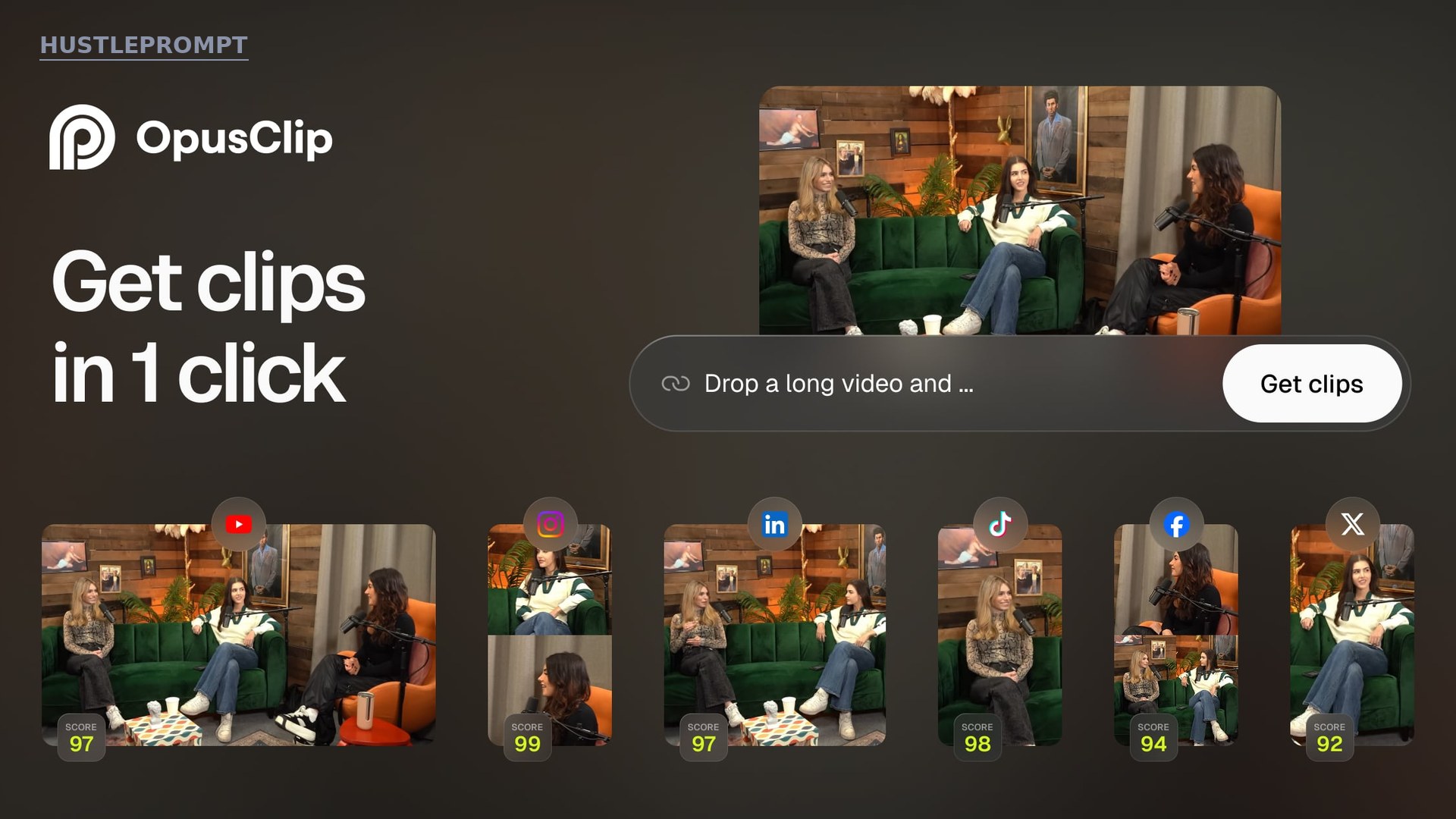
Opus Clip is the closest thing to a one-click repurposing machine. Upload a video (or paste a YouTube link), and its AI finds the highlights, adds animated captions and emojis, and assigns each clip a Virality Score — a predicted-engagement rating that tells you which clips deserve your attention first.
Starter ($15/month) removes the watermark and unlocks the score plus reprompt clipping — asking the AI to redo clips with new instructions. Pro ($29/month) adds the social scheduler, 2 team seats, 100GB of storage, and export to Premiere Pro and DaVinci Resolve. Its blog also publishes a step-by-step repurposing playbook used by large creators.
Vizard: the team’s choice
Vizard matches Opus Clip’s core workflow but leans into team collaboration: shared workspaces, brand kits, custom fonts, and up to 20 connected social accounts on the Business plan. Paid plans start from 600 credits a month — double Opus Clip Pro’s 300 — and include 4K exports.
Yearly billing is advertised at 50% off, making annual the sensible default for weekly publishers — month-to-month ($29 Creator / $39 Business) is steep.
Captions: the mobile creator’s studio
Captions started as a mobile app: beyond clipping it offers AI eye-contact correction, digital twins, and 100+ caption styles. Max ($24.99/month) includes 500 generative credits and long-video clipping; Scale ($69.99+/month) suits agencies. Pick Captions for phone-recorded polish; pick Opus Clip or Vizard when long videos must become many clips.
The 1-Video-to-30-Posts System
Here’s where tools become a system. The headline math: one 60-minute video yields roughly 10 usable clips; each clip posted to 3 platforms (Shorts, TikTok, Reels) equals 30 pieces of content — a month of daily posting from one recording session.
The repurposing pipeline
Step 1 — Record with repurposing in mind
Record 45–90 minutes of dense, opinionated content: a tutorial, a commentary, a Q&A, a podcast episode. Speak in self-contained segments — each 1–3 minute chunk should make sense on its own, because each chunk may become a clip.
State takeaways out loud (“The biggest mistake beginners make is…”). AI clipping hunts for complete thoughts, strong opinions, and list structures — feed it what it wants.
Step 2 — Upload and let AI extract clips
Upload the video to Opus Clip or Vizard (or paste the YouTube link). Select your clip length range and let the AI analyze. In 5–15 minutes you’ll get a ranked list of clip candidates — short segments the AI believes will perform.
Don’t accept everything. Review each candidate for three things:
- A hook in the first 3 seconds — a bold claim, a question, or a surprising statement.
- One complete idea — the clip must make sense without the rest of the video.
- Clean audio — if the audio is muddy, the clip dies no matter how good the idea is.
Step 3 — Polish captions and hooks
AI captions are good but not perfect. Fix misheard brand names and jargon, then style the captions: word-by-word highlighting (the “karaoke” style) consistently outperforms static subtitles for retention — the percentage of viewers who watch to the end.
Add an on-screen text hook if the AI skipped one — “I wasted $2,000 before learning this” beats “Here are some tips” every time.
Step 4 — Reframe for each platform
Export each keeper clip in 9:16 vertical for Shorts, Reels, and TikTok. Both Opus Clip and Vizard auto-reframe — their face-tracking keeps the speaker centered when cropping horizontal footage to vertical.
If you also publish on LinkedIn or X, export a 1:1 square version for the feed. One clip, three aspect ratios, zero extra editing.
Step 5 — Turn leftovers into text assets
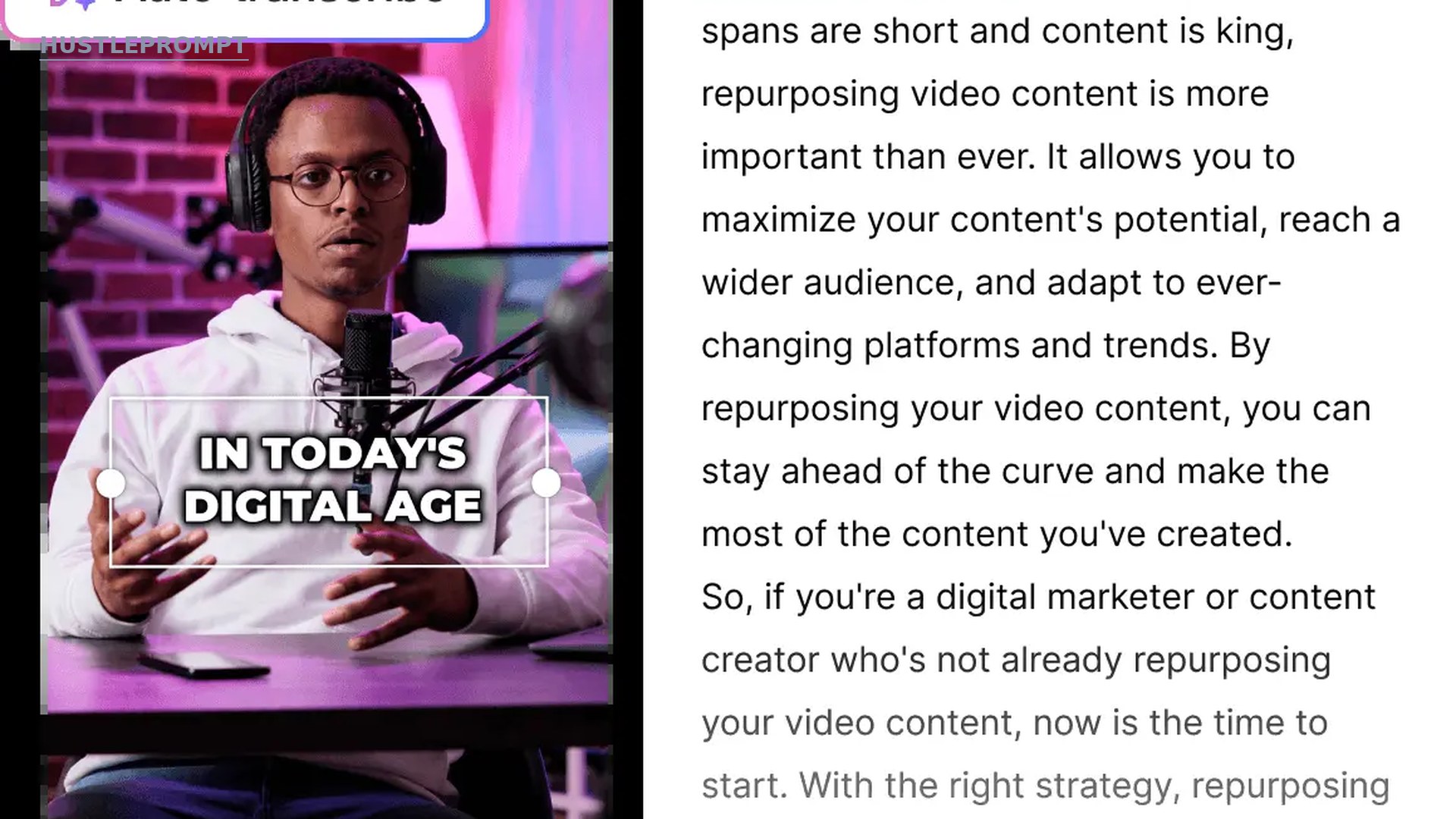
Clips are only half the yield. Export the transcript and mine it for:
- Quote graphics — the 5 strongest one-liners, overlaid on branded backgrounds for Instagram and LinkedIn.
- A carousel — turn one “5 mistakes” segment into a 7-slide swipeable post.
- A newsletter section or thread — the transcript’s best 300 words, lightly edited, become a post for X or your email list.
This is how 10 clips become 30+ assets: 10 clips × 3 platforms, plus quotes, carousels, and text posts from the same transcript.
Step 6 — Batch-schedule everything
Queue finished clips in the tool’s social scheduler (Opus Clip Pro, Vizard paid plans) or a tool like Buffer: one clip per day per platform, staggered — TikTok Monday, Reels Wednesday, Shorts Friday.
Write captions once per clip with 3–5 niche hashtags, then reuse them across platforms with small tweaks. The whole scheduling session takes about an hour for a month of content.
Step 7 — Review analytics and feed the loop
After two weeks, check which clips earned the most views and watch time. Then do more of what worked: if “mistake” hooks outperform “tips” hooks, record your next long video packed with mistake framings.
Repurposing isn’t just distribution — it’s market research. Your clips tell you exactly which ideas deserve a full video next.
5 Mistakes That Kill Repurposed Clips
Most failed clips fail for avoidable reasons. Watch for these:
- Posting raw AI output. Review everything — expect to discard or fix 20–40% of candidates.
- Weak first 3 seconds. Trim ruthlessly to the strongest line, or viewers swipe.
- Static delivery. Add pattern interrupts: zooms, caption animations, B-roll.
- Ignoring the watermark. $15/month to remove it is the cheapest credibility upgrade in content.
- Blasting everywhere at once. Stagger by platform and day instead.
How to Profit: Sell Repurposing as a Service
Here’s where this becomes a business. Thousands of coaches, podcasters, and small businesses record long videos and do nothing with them. Sell them the system above as a done-for-you retainer.
The pricing below is our own estimate for illustration — not a market survey. Adjust for your experience and your client’s market.
- Offer: “We turn your 2 monthly videos into 30 days of short-form content.” Client records; you handle clipping, captions, hooks, and scheduling.
- Price: $500–$1,500/month per client. Lower end for solo coaches; higher end for businesses wanting multi-platform coverage and monthly reporting.
- Your costs: ~$29/month for an Opus Clip Pro or Vizard Creator subscription, plus 6–8 hours of your time per client per month once you’re fluent.
- The math: at $800/month with 5 clients, that’s $4,000/month in revenue against ~$30 in tool costs and ~35 hours of work — roughly $110/hour.
- How to land client #1: take one prospect’s existing long video, produce 3 free sample clips, and send them with a 2-sentence pitch. The samples sell the service.
Build your sample portfolio on the free tiers — 60 free credits covers 1–2 demo projects. Upgrade the moment your first retainer lands.
Frequently Asked Questions
What exactly is AI content repurposing?
It’s the practice of using AI tools to convert one piece of long-form content (a video, podcast, or webinar) into many smaller assets: short clips, captioned videos, quote graphics, carousels, and text posts. Instead of creating new content for every platform, you multiply what you already made.
How many clips can I realistically get from one video?
Hands-on testing shows a 45-minute podcast typically yields 5–20+ clip candidates, of which you’ll keep roughly half after review. Plan on 8–12 strong keepers per hour of dense, well-structured source video. Rambling or low-energy footage yields far fewer.
Do I need a paid plan to start?
No. Both Opus Clip and Vizard offer free plans with 60 credits (60 minutes of video) per month — enough to repurpose one long video and test the full workflow. The main limits are watermarks, lower export quality, and short storage windows. Upgrade when you’re publishing regularly or serving clients.
Which tool is best: Opus Clip, Vizard, or Captions?
For pure long-to-short clipping with minimal effort, Opus Clip’s Virality Score and automation are hard to beat. For teams and 4K output, Vizard’s collaboration features and larger credit allowances win. For mobile creators who also want AI eye-contact fixes and digital twins, Captions is the pick. Most solo creators start with Opus Clip.
Will AI-generated clips look generic or off-brand?
Only if you post them raw. All three tools let you set brand templates — your fonts, colors, and caption styles — so every clip matches your identity. The 10 minutes you spend on a brand template pays off across hundreds of clips.
Can I sell repurposing as a service without being a video editor?
Yes — that’s the point. The AI does the technical editing; your value is judgment (picking winning clips), packaging (hooks and captions), and consistency (scheduling). Clients pay for the outcome — a full content calendar — not for your Premiere Pro skills.
How much time does the full system take per month?
Once you’re fluent: about 2–3 hours per long video, including review, polishing, and scheduling. Two videos a month means roughly one working day to produce 30+ scheduled posts. The first run takes longer — budget a full afternoon while you learn the tool.