
The most annoying sentence in AI slide generation is “just regenerate it.” Google finally agrees: Gemini Notebook — the research app formerly known as NotebookLM — now co-creates Slide Decks and Video Overviews with you, through a guided workflow where you shape the plan before anything renders.
Announced October 19, 2026 by Google’s Viraj Doshi and Shan Wang, the new co-creation flow fixes the worst part of AI-generated decks: getting a finished artifact that focuses on the wrong topic, with no option except starting over. Now you review and edit the outline first — then generate.
For anyone who sells decks or videos — freelancers, course creators, YouTubers — this changes the offer. The workflow itself is the product.
What Google announced
In Google’s official announcement, Doshi (Senior Product Manager) and Wang (Senior UX Designer) explain the shift: “Instead of jumping from an initial prompt straight to a final output, Gemini Notebook can now walk you through the creation flow in a quick process based directly on your sources.”
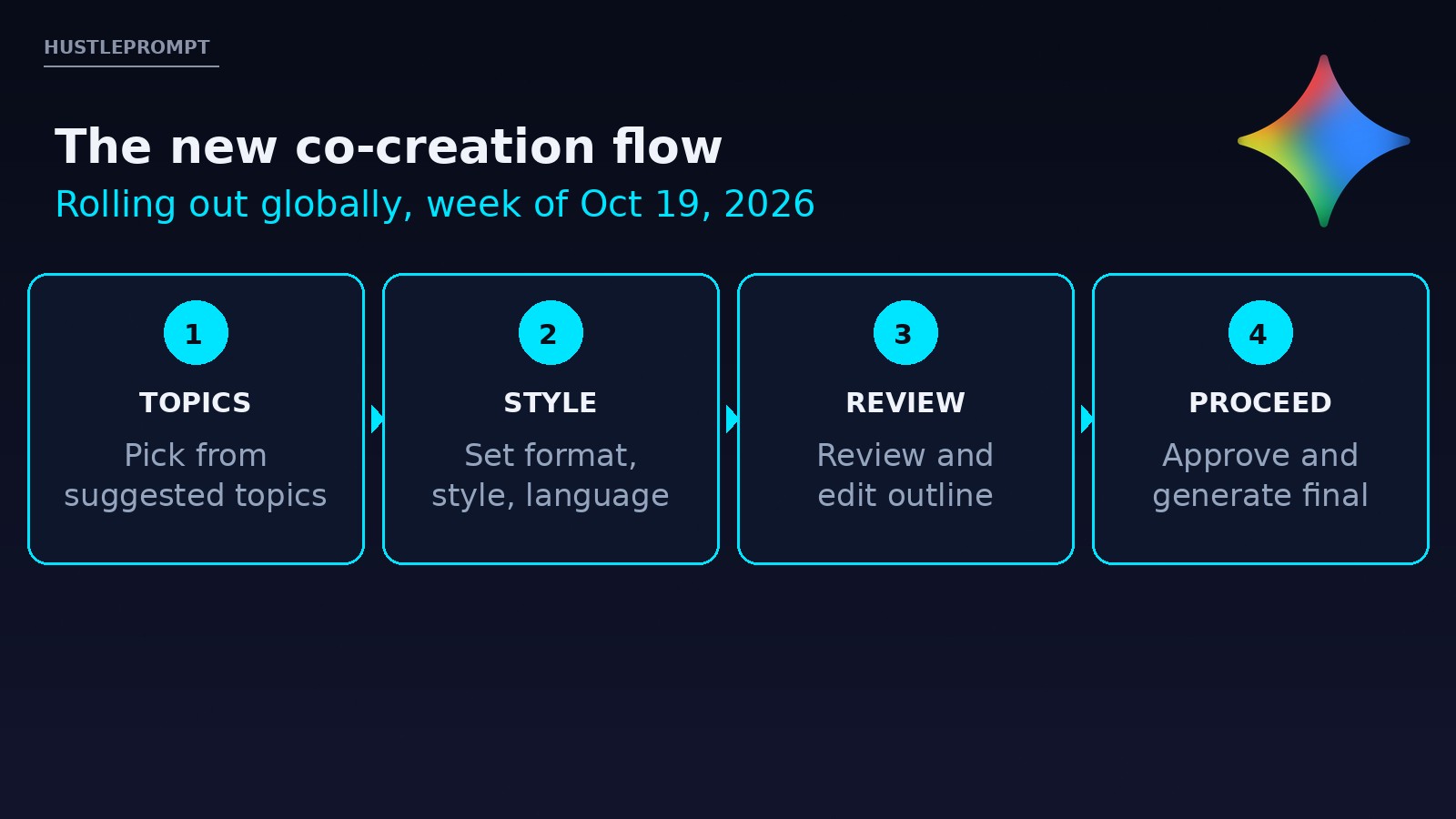
Here is the new sequence:
- Ask in chat for slides or a video overview. Notebook suggests focus topics drawn from your sources — pick one or type your own.
- Steer the content: confirm topics, then guide the visual style and format — plus length and language for video.
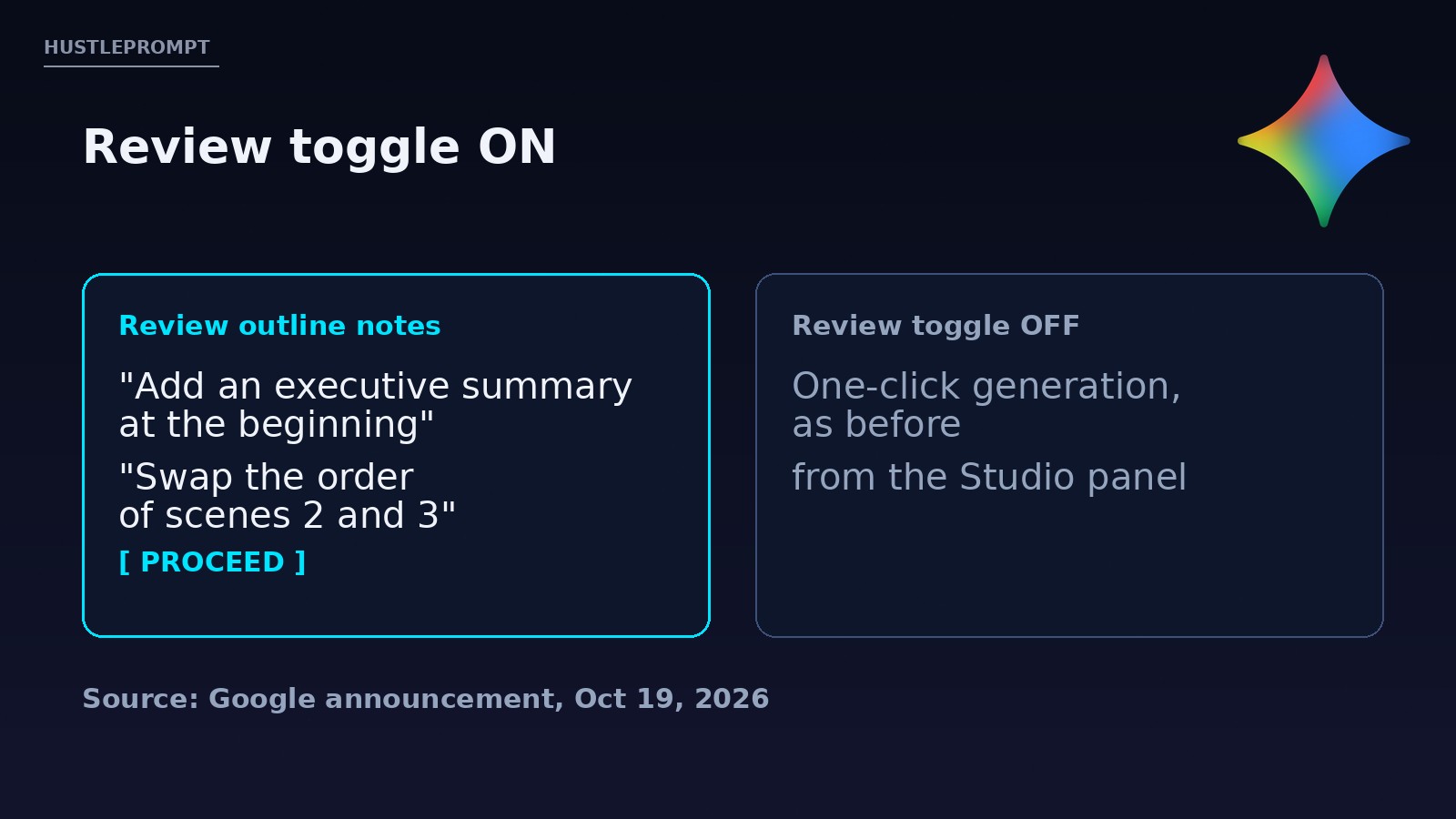
- Review toggle: switch it on to inspect the plan in the Studio panel — “Review outline notes” for slides, “Review producer notes” for video.
- Give feedback: ask for changes, like adding an executive summary at the start or reordering scenes, before anything renders.
- Proceed: once the plan looks right, generate the final artifact.
In a hurry? Skip the toggle and generate from the Studio panel exactly as before. And if you already know what you want, you can specify it in your initial prompt to jump straight to the review flow.
Before vs. after co-creation
| Step | Old flow | New co-creation flow |
|---|---|---|
| Topic | Hope the prompt was clear enough | Notebook suggests topics from your sources; you pick |
| Style | One shot, fixed look | You guide format, length, language, and visual style |
| Plan check | None — full render first | Review toggle: inspect outline or producer notes first |
| Fixes | Regenerate everything | Request targeted edits, then Proceed |
| Output | Take it or leave it | Slides downloadable as PDF or PowerPoint |
Evidence, verbatim: “Based on your feedback, Gemini Notebook now offers more creative control from start to finish on two of our popular outputs: Slide Decks and Video Overviews.” — Viraj Doshi & Shan Wang, Google’s official announcement, Oct 19, 2026. The feature is “rolling out globally to all Gemini Notebook users over the upcoming week.”
The Review toggle is the real upgrade
Everything about this update is useful, but the Review toggle is the part that kills the regenerate loop. With it on, you see the outline notes (for slides) or producer notes (for video) before generation starts. You are editing a plan, not arguing with a finished render.
Co-creation in four moves
Notebook suggests focus topics from your sources.
You set format, visual style, length, and language.
Toggle on, inspect the outline, request edits.
Approve the plan and generate the final artifact.
How to profit: sell the workflow, not the deck
The money angle is simple: clients do not pay for slides; they pay for certainty. A co-created deck you reviewed is a deliverable you can stand behind. Here is how to package it:
1. Client pitch decks for freelancers
- Collect the client’s sources — briefs, data, past decks — into a Gemini Notebook. Everything the deck says will be grounded in their material, with citations you can check.
- Co-create the outline with the client in the room. Walk through the suggested topics together; let them steer. This turns a deliverable into a workshop they will happily pay for.
- Review, then Proceed. Fix structure at the outline stage — where changes cost seconds, not hours.
- Deliver the file as PowerPoint or PDF, plus the source-grounded notebook as a bonus asset.
2. Course creators and YouTubers
Video Overviews turn your research into narrated explainers. Feed a notebook with your course material, co-create the producer notes, and generate short videos for lessons, promos, or social clips — each one reviewable before render, so your brand voice survives the process.
3. The recurring angle
Clients refresh decks constantly: quarterly reviews, investor updates, sales kickoffs. A standing notebook of their sources plus your co-creation workflow becomes a deck-on-retainer service — same sources, new topics each cycle.
The fine print: check everything
Google is upfront about the limits, and you should be too. Per Google’s help pages:
- Slide decks “may contain visual or factual inaccuracies.”
- Video overviews — including voices and visuals — “may contain inaccuracies or audio glitches.”
The review step reduces structural mistakes, not factual ones. For client work, verify every number and claim against the cited sources before you export. Finished decks can be presented inside Gemini Notebook or downloaded as a PDF or PowerPoint file.
FAQ
What is Gemini Notebook?
Gemini Notebook — formerly NotebookLM — is Google’s source-grounded research tool. You add sources (docs, websites, videos), and it answers and creates outputs strictly from that material, with citations.
What does “co-create” mean here?
Instead of prompt→final output, Notebook walks you through a guided flow: it suggests topics from your sources, lets you steer format and visual style, and — with the Review toggle on — shows you the outline or producer notes to edit before anything renders.
How do I turn on the Review toggle?
In the Studio panel, enable Review, then click “Review outline notes” for slides or “Review producer notes” for video. Give feedback (e.g., “add an executive summary at the beginning”), then select “Proceed” to generate.
When will I get the co-creation feature?
Google says the capabilities are “rolling out globally to all Gemini Notebook users over the upcoming week” from October 19, 2026. If you do not see it yet, check back — or generate from the Studio panel as before.
Can I skip the review step?
Yes. Leave the toggle off and generate directly from the Studio panel for a one-shot output, exactly like the old flow.
Can I use the decks commercially?
The announcement covers creation, not licensing terms. Always check Google’s current terms of service for commercial-use rules before selling client work made with the tool.
How accurate are the generated decks and videos?
Google warns that slide decks “may contain visual or factual inaccuracies” and video overviews “may contain inaccuracies or audio glitches.” Verify claims against the cited sources before publishing or delivering to a client.