
Copilot Vision can now literally see your screen inside Microsoft Edge — and it does it for free, with your permission, while barely remembering anything about you. If you do visual work online — research, price comparisons, client website audits — this is one of the most practical AI upgrades of the month. Here’s what it does, what it records, and how to turn it into billable work.
What Copilot Vision Actually Does
Copilot Vision is Microsoft’s talk-based screen-reading experience built into the Copilot sidebar in Edge. It looks at the page you’re on and answers questions about it out loud, in real time — a second set of eyes that reads dense product pages, compares two tabs of pricing, or walks you through a multi-step form.
One hard limit, straight from Microsoft Support: Vision answers questions but does not act for you. It may highlight parts of the page, but it will not click links, fill in forms, type, or scroll on your behalf.
How to Start a Vision Session (Opt-In, Every Time)
Vision is 100% opt-in. With the updated Copilot experience rolling out in Edge worldwide (Microsoft 365 Message Center MC1484007), the flow is dead simple:
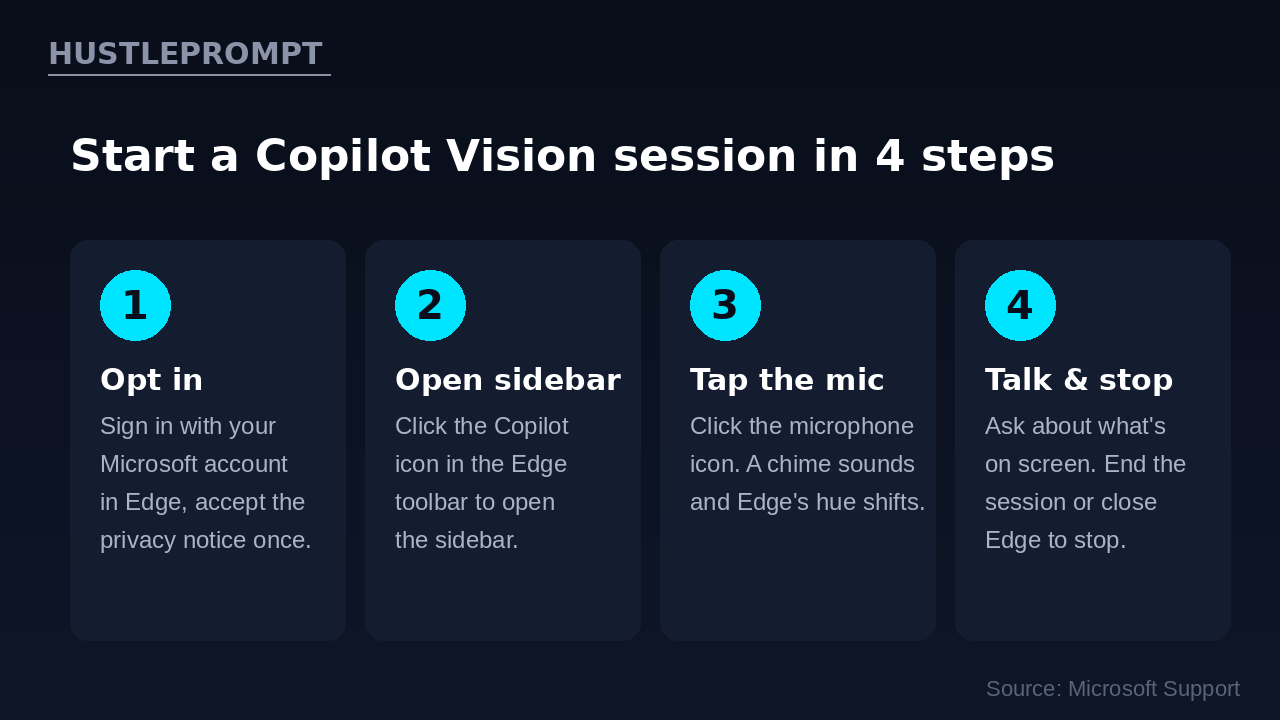
- Opt in once. Sign in to Edge with your personal Microsoft account and accept the privacy notice the first time Vision runs.
- Open the sidebar. Click the Copilot icon in the Edge toolbar while you’re on any supported website, video, or PDF.
- Click the microphone. Hit the mic (voice) button. A chime sounds and the browser’s hue shifts — that’s your signal that Copilot is now watching the screen.
- Just talk. Ask things like “summarize this page,” “compare the plans on these two tabs,” or “walk me through this checkout form.”
When you’re done, click Stop in the floating toolbar or close Edge — either ends the session immediately. Vision stays on across pages until you end it.
The Privacy Rules, in Plain English
This is where Microsoft drew a hard line, per Microsoft’s own support documentation:
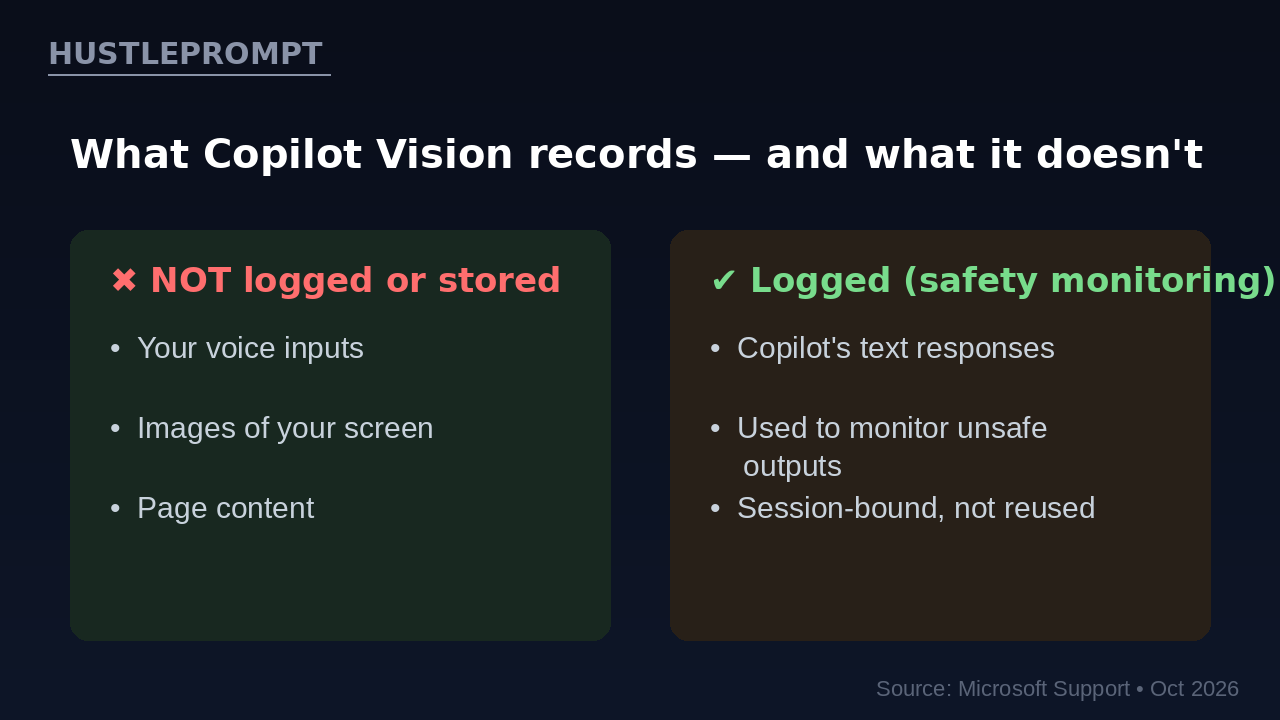
“When using Vision, only Copilot’s responses are logged to enable monitoring of unsafe interactions and outputs. User inputs, images, and page content are not logged or stored. Once the voice session ends, this data is deleted.”
— Microsoft Support, “Using Copilot Vision with Microsoft Copilot”
Practical translation for freelancers:
- Safe for client work — screenshots, page content, and your voice never land in a stored log.
- Each session is independent — Copilot doesn’t reuse screens from earlier chats, and you can disable “context cues” in Edge settings entirely.
- Still avoid banking tabs — opt-in doesn’t mean zero risk. End the session before switching to sensitive pages.
Free in Edge vs. Copilot Pro: What’s the Difference?
Vision in Edge is free for personal accounts. Broader, system-wide Vision — Copilot watching apps like Photoshop, Excel, or a game on your desktop — remains a paid feature. Here’s the breakdown:
Source: Microsoft Support; Copilot Pro at $20/month.
How Freelancers Can Profit From Copilot Vision
Here’s where this stops being a demo and starts paying for itself — four concrete ways to bill for Vision-powered work:
1. Visual research, 3x faster
Comparing SaaS pricing pages or digesting 40-page PDFs? Start a Vision session on each source and ask for the numbers. A teardown that took two hours of tab-switching now takes 30 minutes of talking. Sell it as a flat-fee “competitive intelligence sprint.”
2. Client website audits on the fly
Load a client’s page and ask Vision to flag friction — confusing CTAs, broken visual hierarchy. It highlights elements as it talks, which is gold for recorded audit videos you sell for $150–$400 a pop.
3. Product comparison as a service
Affiliate marketers can compare specs across retailer tabs in real time and ask Vision to build the comparison points. The output becomes the backbone of review content — faster publishing, more affiliate revenue.
4. Smarter sourcing for resellers
Point Vision at a supplier catalog or live auction page and ask it to flag items matching your criteria — model numbers, condition notes, price anomalies. A spotter that never blinks.
Watch It in Action
Above: Microsoft Edge’s official Copilot Vision demo.
The 60-Second Mental Model
Frequently Asked Questions
Is Copilot Vision free?
Yes, inside Microsoft Edge with a personal Microsoft account. System-wide Vision across other desktop apps requires Copilot Pro ($20/month).
Does Copilot Vision record my screen?
No. Microsoft states user inputs, images, and page content are not logged or stored. Only Copilot’s text responses are logged for safety monitoring.
Can Copilot Vision click buttons or fill in forms for me?
No. Vision is read-only: it can highlight parts of your screen, but it will not click, type, scroll, or take any action on your behalf.
How do I know when Vision is watching?
A chime sounds, the browser hue shifts, and a floating toolbar with a glasses icon stays on screen.
Does Vision work on every website?
Almost — most sites, videos, and PDFs. Microsoft blocks it on pages with harmful or adult content.
How do I stop sharing my screen with Copilot?
Click Stop in the floating toolbar, close the Copilot side pane, or close the Edge window. Any of these ends the Vision session immediately.